
As a Software Engineer, you read, update, and write code daily.
And most probably you’re doing it through an IDE.
In my case, I use VS Code or Cursor, which is a fork of VS Code.
It’s beneficial if your IDE works for you, not against you.
Tuning your IDE by adding helpful extensions can boost your productivity.
In today’s article, I’ll cover some of my favorite VS Code extensions I use daily to speed up my work.
PS. These extensions are general-purpose, regardless of the language.
1. Code Spell Checker
Code Spell Checker is a basic spell checker which works pretty well with code.
It helps to catch common spelling errors, typos, and mixing alphabets from different languages.
For example, imagine using a and а.
They look the same but the IDE and your code won’t treat them the same way.
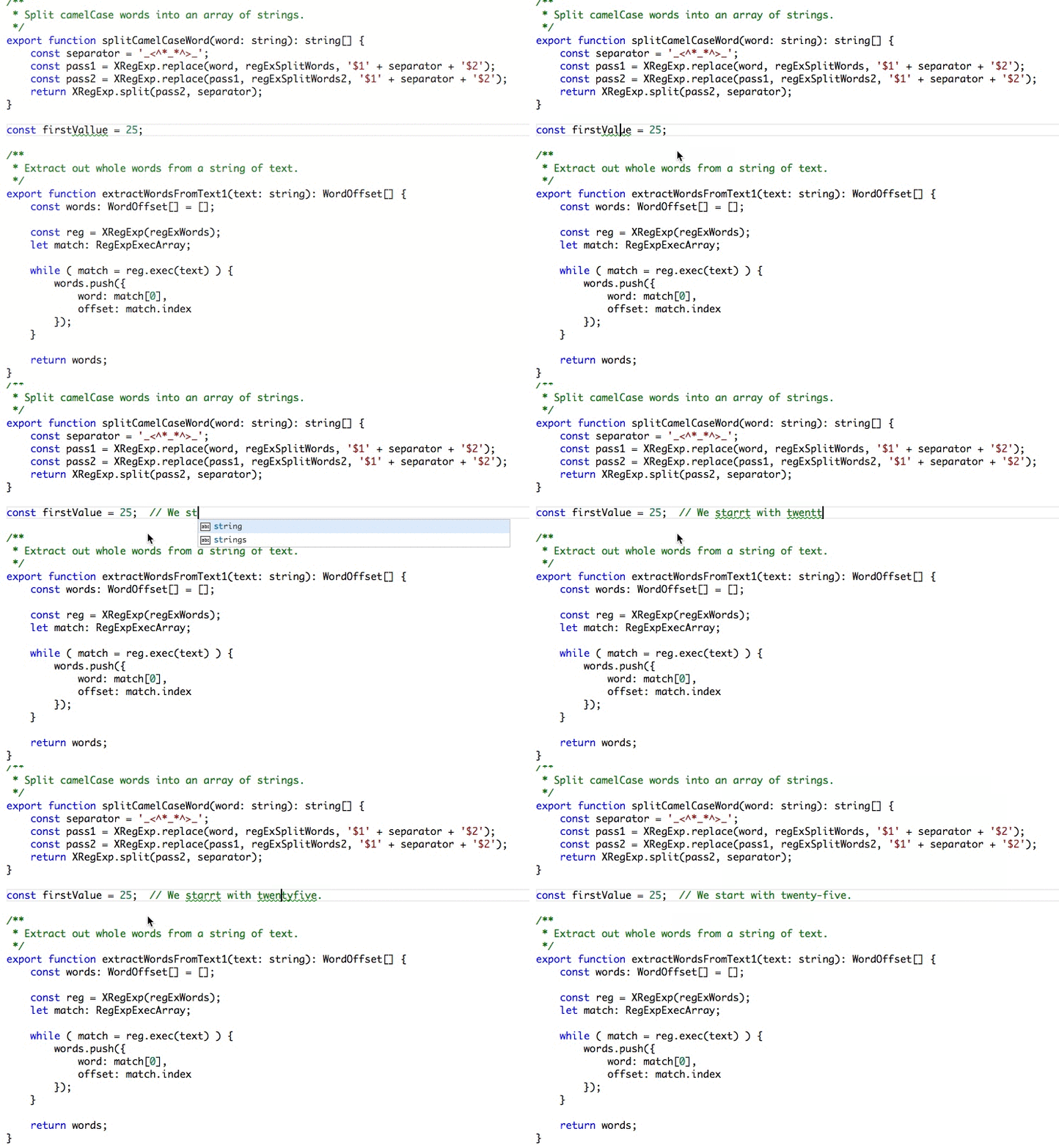
You can find the extension both directly in the IDE Extensions Tab or in the Marketplace (link).
2. EditorConfig for VS Code
This plugin attempts to override user/workspace settings with settings found in .editorconfig files.
It’s very helpful when you work on projects with different settings that are different than the ones you have by default in your IDE.
For example, in my personal projects, I use two spaces as indentation but as consultant I’ve worked on many legacy projects with four spaces as indentation.
Using the .editorconfig file in such projects made my life much easier.
You can find the extension both directly in the IDE Extensions Tab or in the Marketplace (link).
3. GitLens — Git supercharged
GitLens enhances your workflows with powerful Git functionality like in-editor blame annotations, hovers, CodeLens, and more—all fully customizable within VS Code.
It’s a must-have extensions if you’re using Git, in my opinion.
One of its coolest features is to see by whom a line was edited and directly jump to the Pull Request or Merge Request to further inspect it.
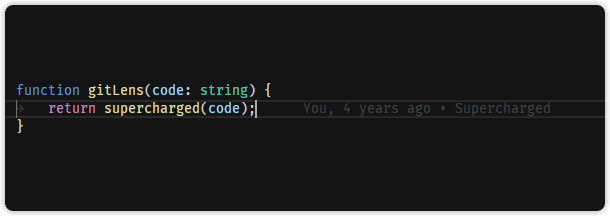
You can find the extension both directly in the IDE Extensions Tab or in the Marketplace (link).
4. VS Code Icons
It brings real icons to your VS Code.
It makes it much clear what files and folders you have in your project and what are their types.
So navigation throughout the project becomes a bit easier.
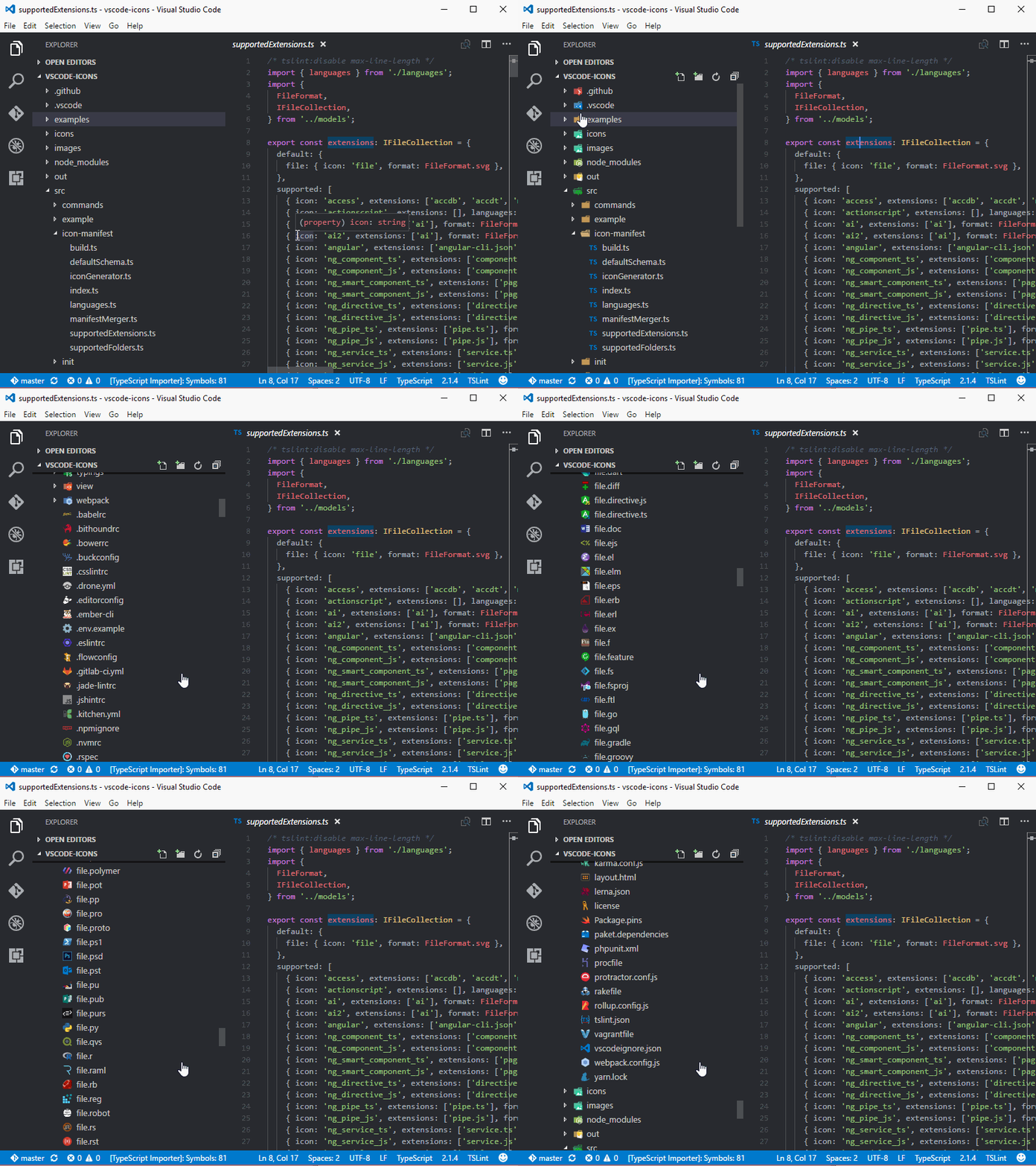
You can find the extension both directly in the IDE Extensions Tab or in the Marketplace (link).
5. Error Lens
ErrorLens turbo-charges language diagnostic features by making diagnostics stand out more prominently, highlighting the entire line wherever a diagnostic is generated by the language and also prints the message inline.
It’s really handy to see immediate clear feedback from your changes which speeds up the feedback loop and code iterations.

You can find the extension both directly in the IDE Extensions Tab or in the Marketplace (link).
6. Indent Rainbow
It’s a simple extension to make indentation more readable.
This extension colorizes the indentation in front of your text, alternating four different colors on each step.
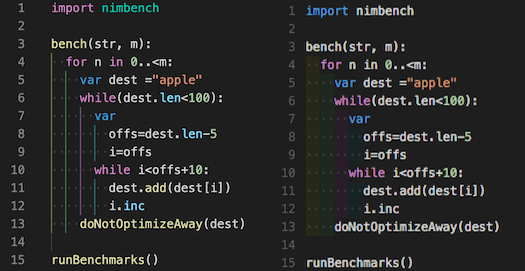
You can find the extension both directly in the IDE Extensions Tab or in the Marketplace (link).
7. MarkdownLint
In my experience, I use markdown files in repositories for documentation.
Getting my markdown files correct is a must.
VS Code has basic Markdown support out-of-the-box (e.g, Markdown preview), please see the official documentation for more information.
However, we don’t have a linting for the markdown files to ensure consistency and
MarkdownLint plugin helps with linting and style checking for your markdown files.
You can find the extension both directly in the IDE Extensions Tab or in the Marketplace (link).
8. Path Intellisense
This plugin autocompletes filenames.
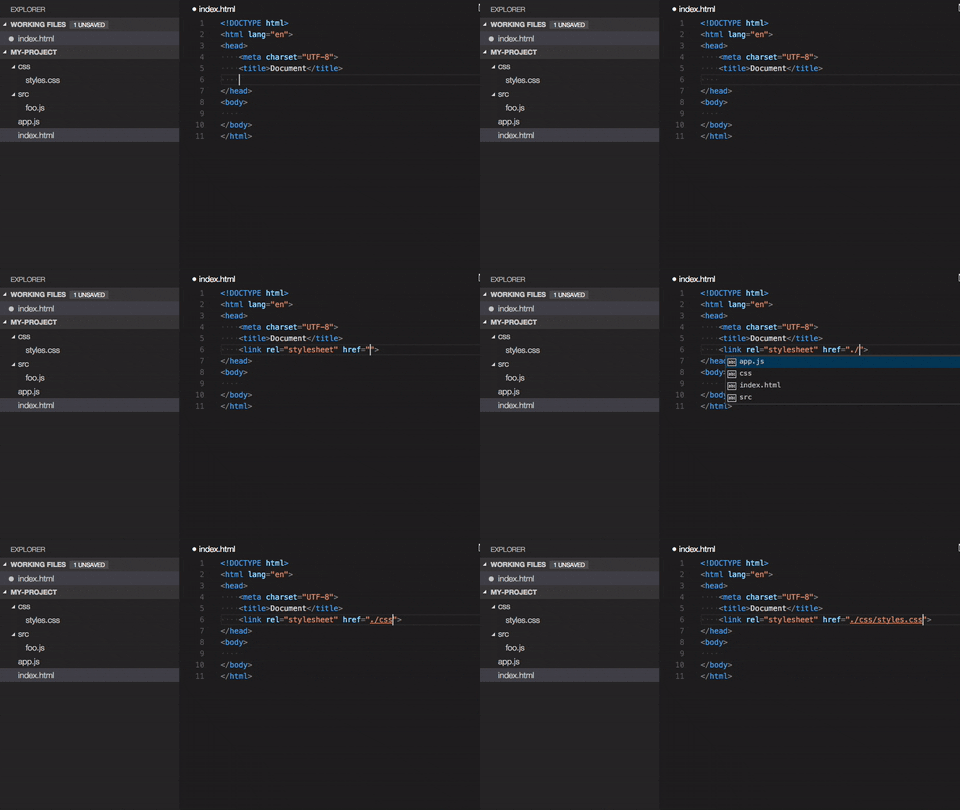
You can find the extension both directly in the IDE Extensions Tab or in the Marketplace (link).
9. GitHub Copilot Chat
Using a LLM and a chatbot for coding has become the de facto standard.
So if you’re not using one already, you’re falling behind.
In VS Code, you can use GitHub Copilot for FREE.
Of course, it has some limitations, but still you can take advantage of it.
You can find the extension both directly in the IDE Extensions Tab or in the Marketplace (link).
If you’re using Cursor, you won’t need it, since it has its own autosuggestion and AI functionality.
📌 TL;DR
- Code Spell Checker
- EditorConfig for VS Code
- GitLens — Git supercharged
- VS Code Icons
- Error Lens
- Indent Rainbow
- MarkdownLint
- Path Intellisense
- GitHub Copilot Chat